Instance Backup Policies
Overview
An Instance Backup Policy is a per-instance, customer-facing setting that opts a virtual machine (VM) into an automated backup schedule. Instead of clicking "Backup now" each day, you create a policy once (when does the backup run, how many copies to keep, which disks to copy) and attach instances to it.
The policy decides:
- When the backup runs (the schedule).
- How many old copies to keep (the retention).
- Which disks of the instance are copied (only the boot disk, or all attached disks).
- Whether to use incremental backups (copying only what changed since the last full backup) to save space.
Backups created by a policy are written to a backup storage target. That target (NFS share, S3 bucket, or local disk) is configured by the administrator on the Backup Storages page. See the Backups guide for backup storage setup.
Concepts
Read this section once. The terms come up in every screen and error message.
- Instance - A running virtual machine.
- Backup - A point-in-time copy of an instance's disk written to backup storage.
- Full backup - A complete copy of the disk. Large but self-contained, restore needs only this one file.
- Incremental backup - A small copy that only contains the blocks that changed since the last backup. Cheaper to store, but you need the full backup plus every incremental after it to restore.
- Chain - One full backup plus all the incrementals that depend on it. Restoring an incremental walks the chain back to the full.
- Retention count - How many chains to keep. When you exceed this number, the oldest chain (full plus its incrementals) is deleted automatically.
- Schedule - When backups run. Daily (every 24 hours) or weekly (one day per week), at a specific hour in your account's timezone.
- Backup device - Which disks of the VM are backed up. Either just the boot disk (the primary disk that has the OS) or all attached disks (boot disk plus any extra data disks).
- qcow2 - A disk image file format used to store the backup data. You do not need to manage these files directly, the system does it.
- Backup storage - The destination (NFS, S3-compatible bucket, SFTP, FTP, local disk) where the backup files actually live. Configured by an administrator.
Admin: Configuring Backup Policies
The admin view lets you create policies on behalf of any user and manage all policies across the platform.
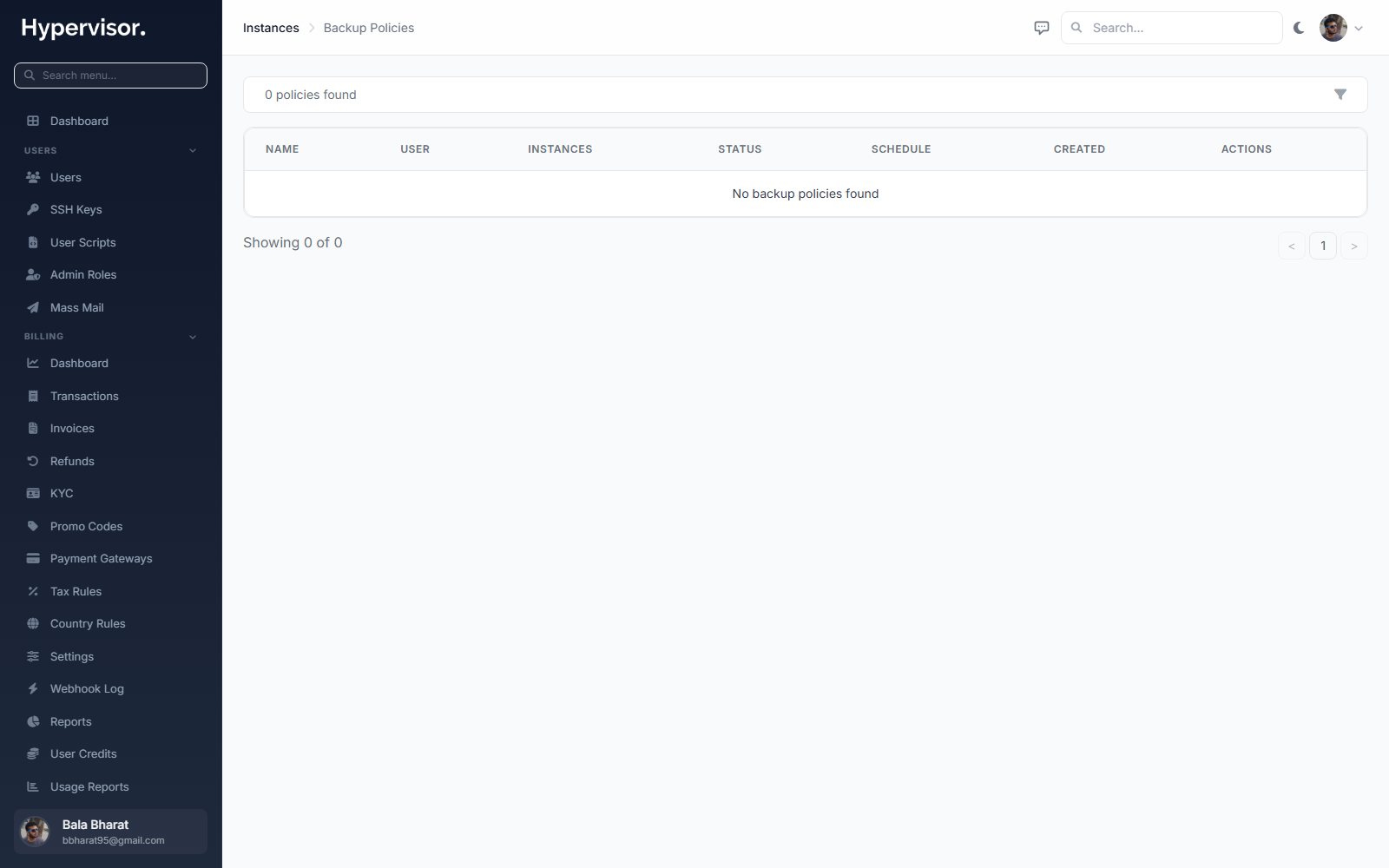
Click Add Policy to open the create form.
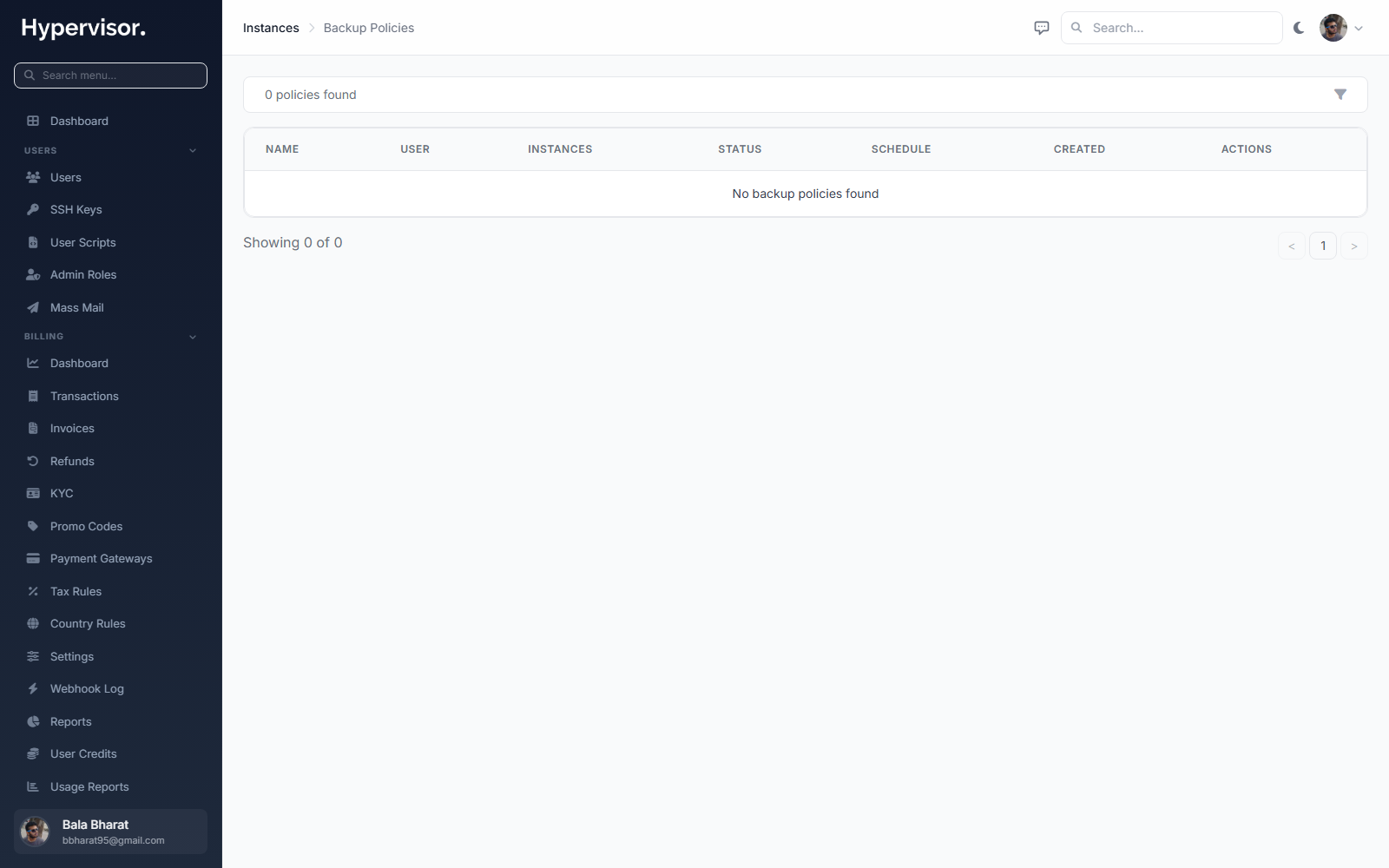
Steps
- Open the admin sidebar and go to Instances then Backup Policies.
- Click Add Policy.
- Pick the User who owns the policy. The policy and its backups count against that user.
- Fill in the configuration (sections below).
- Click Create.
General
| Field | What it means |
|---|---|
| Name | Any label that helps you find the policy later, for example "Daily production backups". |
Schedule
| Field | Values | What it means |
|---|---|---|
| Full Backup Frequency | Daily or Weekly | How often a full backup runs. |
| Full Backup Time | 12-hour AM/PM clock | Hour of day to start the backup. Shown in the user's timezone, converted to UTC internally. |
| Day of Week | Sunday to Saturday | Only shown for weekly schedules. Picks which day the full backup runs. |
Times use the account's timezone. The system converts to UTC on save, so a backup configured for "2:00 AM" runs at 2:00 AM in the user's timezone regardless of the server's clock.
Retention and Incremental Settings
| Field | Default | What it means |
|---|---|---|
| Max Incremental Chain | 6 | How many incremental backups sit between two full backups. Set to 0 if you only want full backups. |
| Retention Count | 3 | How many chains to keep before the oldest one is deleted. |
| Backup Device | Primary Disk | Which disks to copy: only the boot disk (primary) or every attached disk. |
Editing or deleting a policy
From the list page, click Manage on the policy card to edit settings or remove the policy. Deleting a policy does not delete existing backups, those stay until retention removes them or you delete them manually.
User: Creating a Backup Policy
End users see a similar page in their own panel.
- Open the sidebar, go to Compute then Backup Policies.
- Click Add Policy.
- Fill in the same fields shown above. Users do not pick an owner, the policy belongs to the logged-in user.
- Click Create Policy.
Policy List Cards
Each policy is shown as a card with:
- Policy name (click to open the detail page).
- Status badge: Active (green), Paused (yellow), or Error (red).
- Schedule summary, for example "Daily at 2:00 AM" or "Weekly on Monday at 3:00 AM".
- Number of instances attached.
- Retention count and incremental chain length.
- Last error, if the most recent backup failed.
Policy Detail Page
Click Manage on a card. You get three sections.
Policy Settings
Read-only view of the configuration. Click Edit Policy to change the schedule, retention, incremental chain, or backup device.
Attached Instances
Table of instances assigned to this policy.
| Column | What it shows |
|---|---|
| Instance | Instance name. Click to open the instance manage page. |
| Status | Instance status (deployed, suspended, and so on). |
| Actions | Detach button. |
To add an instance, pick one from the Attach Instance dropdown and click Attach. Only instances that are not already attached to another policy appear in the dropdown.
Backups
Table of every backup this policy has produced.
| Column | What it shows |
|---|---|
| Instance | Which instance the backup belongs to. |
| Type | Full or Incremental. |
| Size | Human-readable size (e.g. 12.4 GB). |
| Status | Completed, In Progress, Failed, or Pending. |
| Created | Timestamp the backup was taken. |
How Scheduling Works
Daily policies
A full backup is scheduled every day at the configured time. If the incremental chain length is set (for example 6), the system alternates:
- Day 1: Full backup.
- Days 2 to 7: Incremental backup (up to the chain length).
- Day 8: Full backup, starts a new chain.
Weekly policies
Full backup runs on the chosen day of the week. Incrementals run on the other days at the same time.
Full-only mode
Set Max Incremental Chain to 0 to disable incrementals. Every backup is then a full backup.
Retention
Retention Count controls how many chains are kept.
- A chain is one full backup plus all of its incrementals.
- When a new chain is created and the total number of chains exceeds the retention count, the oldest chain (full and all its incrementals) is deleted automatically.
- Setting retention to
3keeps the three most recent chains.
Deleted backups cannot be recovered. Set retention to match your recovery requirements.
Backup Storage Costs
If the administrator sets a backup cost for a location, the cost is shown on the instance's Backups tab:
- Monthly Cost - Cost for the backup based on size in GB times the location's backup credit value.
- Hourly Cost - The monthly cost divided by hours per month.
These columns only appear when backup pricing is configured.
Attaching Instances
Constraints
- An instance can only be attached to one backup policy at a time.
- Only instances in a deployed state get backed up.
- Detaching does not delete existing backups, only stops new backups from running.
Attach steps
- Open the policy detail page.
- In Attached Instances, pick an instance from the dropdown.
- Click Attach.
Detach steps
Click Detach next to the instance. The instance leaves the policy immediately. Existing backups remain until retention deletes them or you delete them manually.
What End Users See
End users see the same list and detail pages described above, but only for policies they own. They cannot pick a different owner when creating a policy, and they only see their own instances when attaching.
Admin vs. User Capabilities
| Capability | Admin | User |
|---|---|---|
| Create policies | Any user | Own only |
| Edit / delete policies | Any | Own only |
| Attach / detach instances | Any instance | Own only |
| View all policies | Yes | Own only |
| View backups | Yes | Own only |
| Delete individual backups | Yes | Own only |
Troubleshooting
Policy status shows "Error"
A backup failed. Read the error on the policy card. Common reasons:
- The instance is suspended or stopped.
- The hypervisor's backup storage is full or unreachable.
- The instance's disk is locked by another operation.
Backups not running at the expected time
- Check the policy status is Active (not Paused or Error).
- Verify your profile timezone, the times in the UI are local to that timezone.
- The scheduler runs every few minutes, so there is a short delay after the scheduled time.
"Instance is already attached to another backup policy"
An instance can only belong to one policy. Detach it from the current policy first.
Backup size is larger than expected
- If All Disks is selected, every attached disk is included, not just the boot disk.
- Incrementals are usually much smaller than full backups. If every backup is large, check that the incremental chain is not set to 0.
Related pages
- Instance Backups - How the underlying backup pipeline and storage targets work.
- Object Storage - S3-compatible storage you can point backups at.
- Database Backup Policies - Same idea, but for managed databases.