Team Management
Overview
Team Management groups four panel-wide admin pages that together control who can use the platform and what staff can do inside the admin panel:
- Users: every customer account on the platform.
- SSH Keys: a global view of all SSH public keys uploaded by any customer.
- Admin Roles: the role-based access control (RBAC) definitions used by staff admins. RBAC means "you can only do what your role lets you do". Each role is a list of fine-grained permissions, for example
billing.invoices.view. - Mass Mail: a tool to email a filtered list of customers in one go.
These pages live under the admin sidebar, not under the customer panel. A customer that wants to invite their own colleagues into their own account does that separately from inside their account.
Concepts
User: a customer account. A user owns instances, buckets, SSH keys, and so on.
Subuser: a colleague the customer invited into their own account. A subuser shares the owner's resources but logs in with their own email and password. From the platform's point of view, a subuser is still a row in the Users table, marked with an owner.
Admin: a staff member with access to the admin panel itself. An admin is also a row in Users, with the is_admin flag set.
SSH key: the public half of an SSH key pair. A user uploads it once and can then attach it to any instance during deploy so they can log in without a password. SSH stands for Secure Shell; the key pair is a pair of cryptographic files where the public half is safe to share and the private half stays on the user's machine.
Admin role: a named list of permissions that staff admins are assigned to. Examples: billing-only, support-l1, full-admin. A permission is a short string like instances.view, instances.delete, billing.invoices.view. A staff admin can hold one or more roles; their effective permissions are the union.
Mass Mail: a one-shot email blast sent to a filtered slice of users. It is not a marketing automation tool; it is a "notify everyone about scheduled maintenance" tool.
Admin steps
Users
Open Users in the admin sidebar. The page lists every account on the platform with search, filters, and bulk actions.
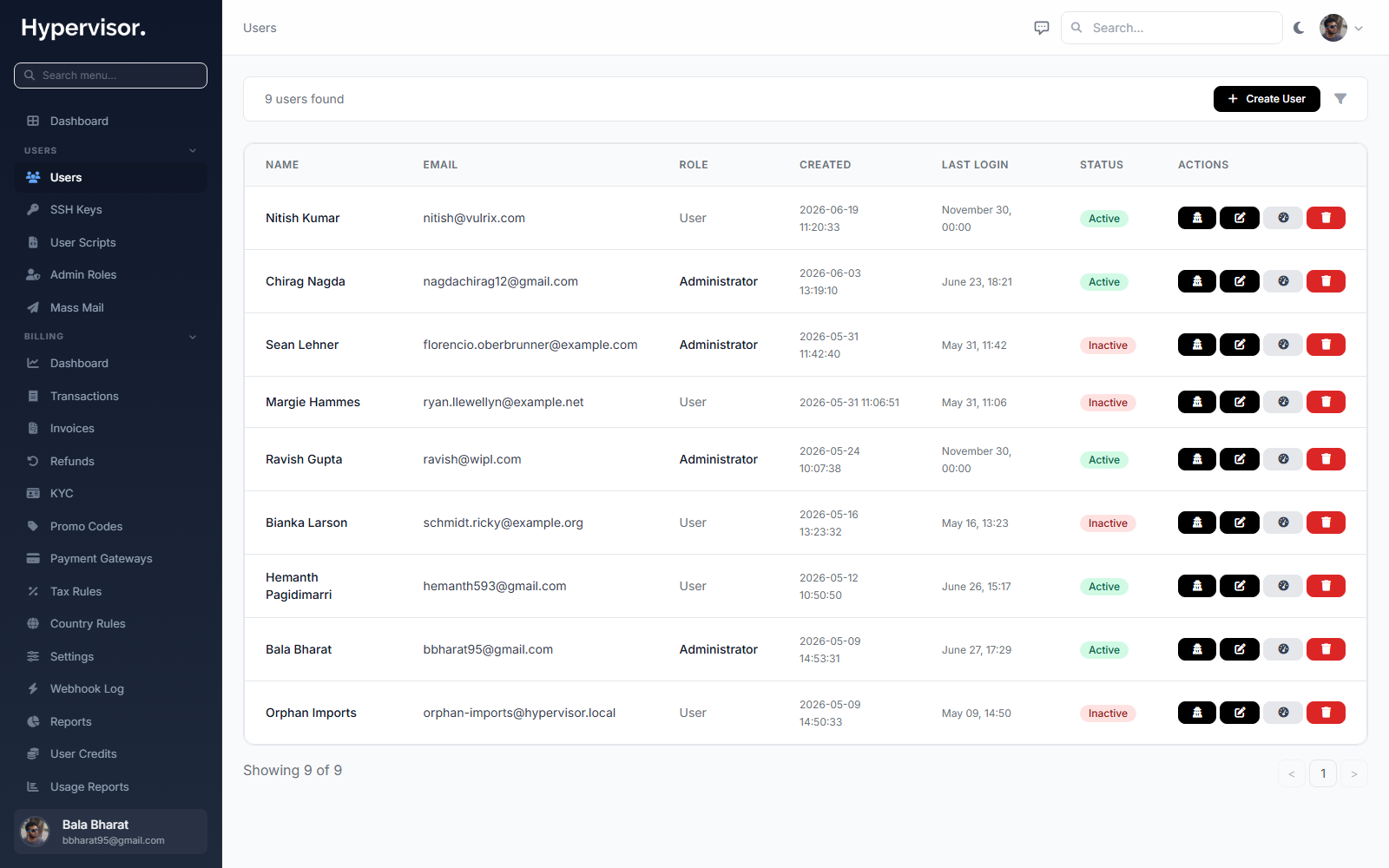
Click Create User to open the create form.
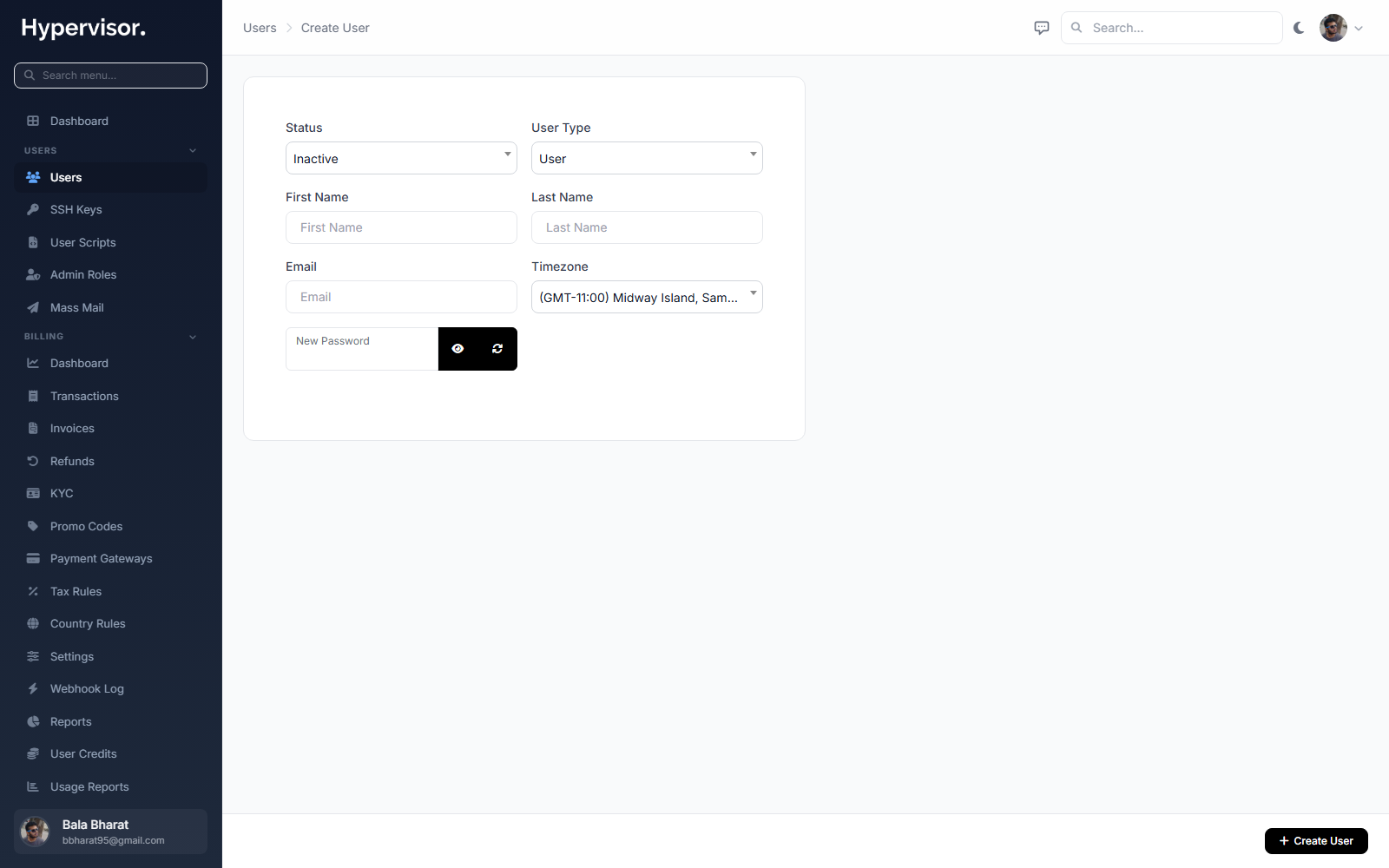
Common operations:
- Create User: open the form, set the email, name, and a temporary password, optionally promote to admin.
- Edit User: change profile fields, toggle
is_admin, attach Self Provisioning packs (see Self Provisioning), and enforce or reset two-factor authentication. - Suspend: prevent log-in without deleting the account. The user keeps their resources but cannot reach the panel.
- Delete: soft-delete the account. The user is hidden and their resources are queued for cleanup.
- Impersonate: sign in as the user from your admin session. Use this when investigating a support ticket. Every impersonation is recorded to the audit log; see Monitoring.
Deleting a user does not immediately destroy their resources. Background jobs tear down instances, buckets, and IPs over the following minutes. Watch the Tasks page (see Monitoring) to confirm.
SSH Keys
Open SSH Keys in the admin sidebar. The page lists every SSH public key uploaded by any customer, with the owner column visible.
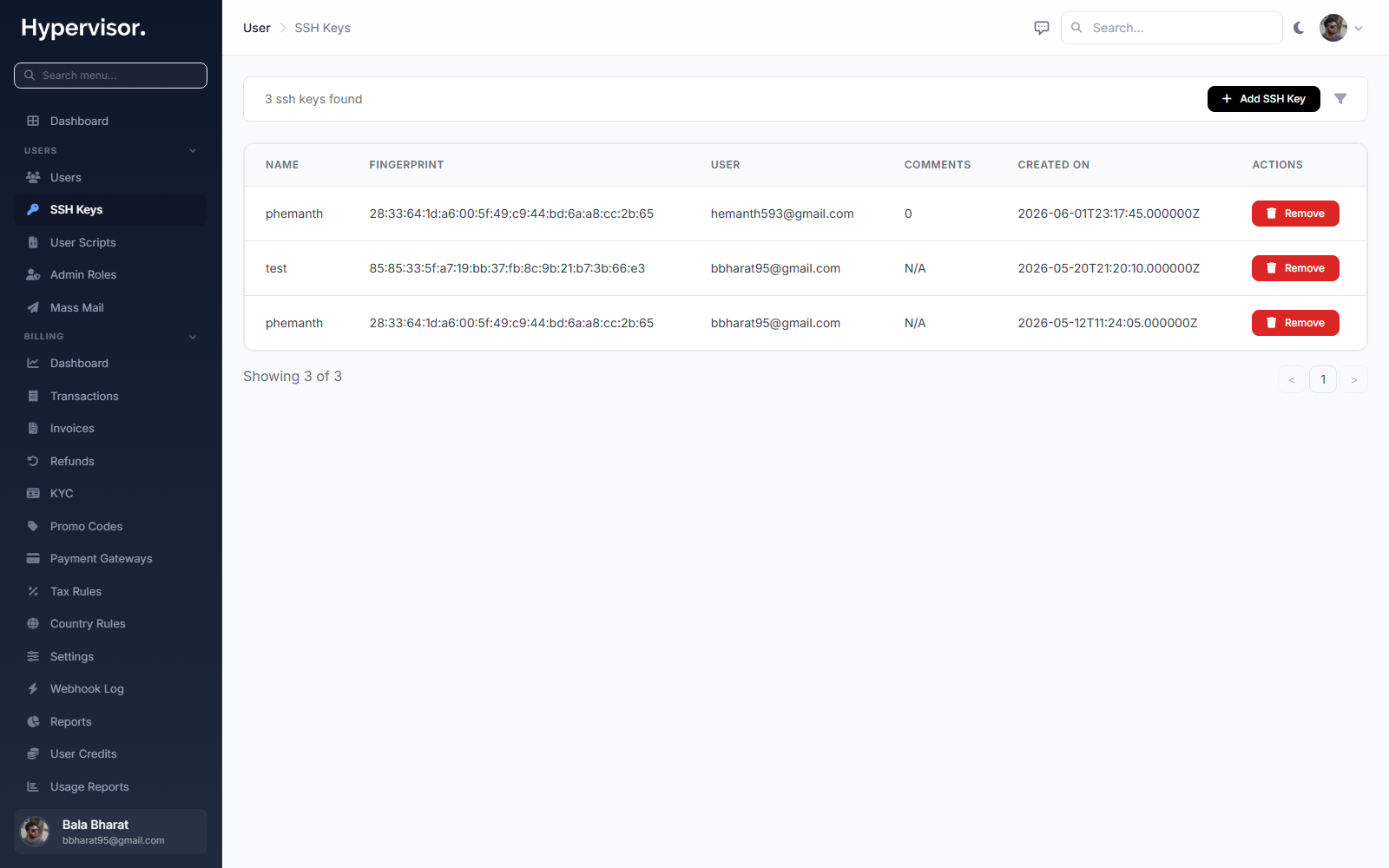
Click Add SSH Key to register a key on behalf of a user.
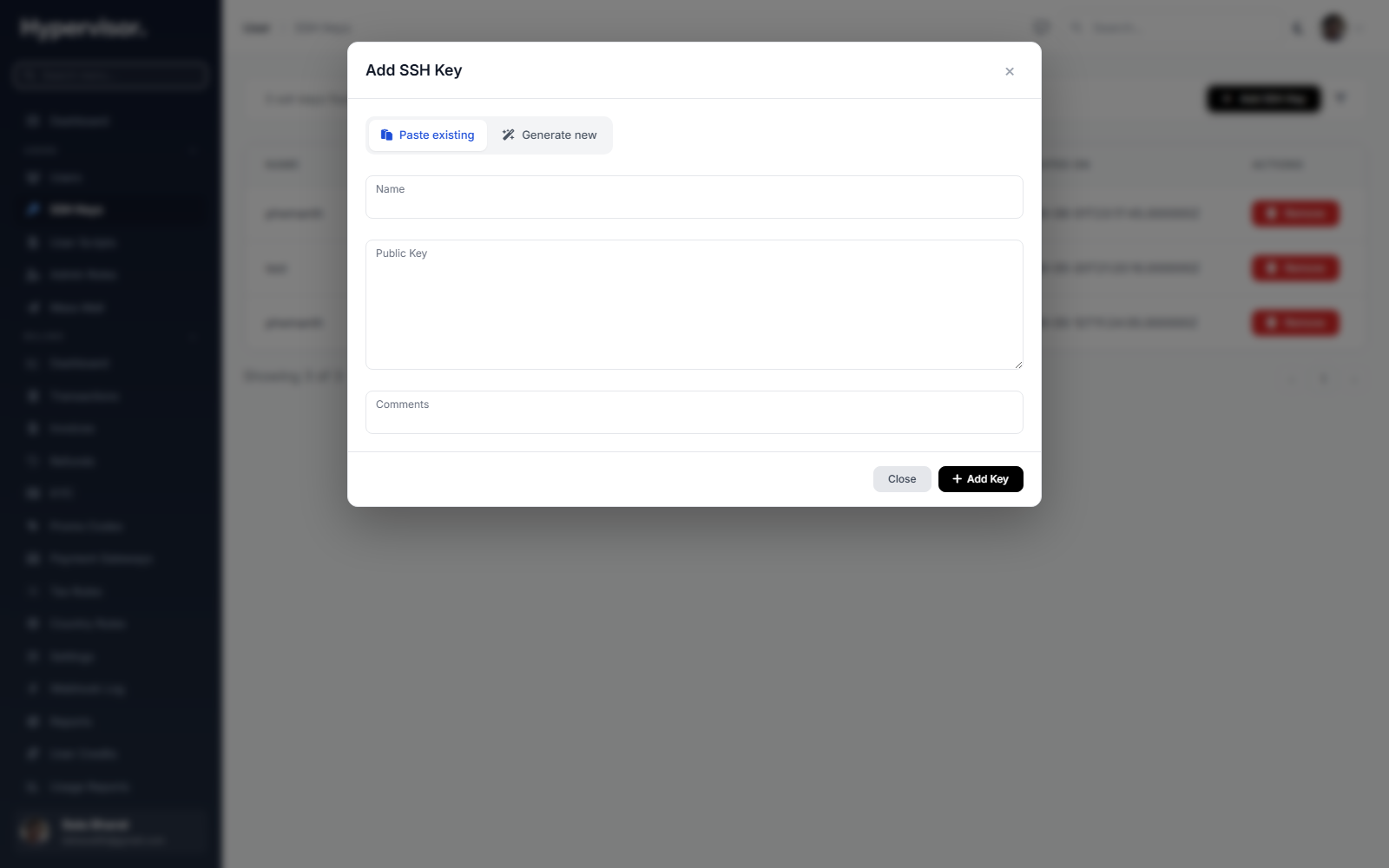
This is a read-mostly audit view: you can confirm a key fingerprint a customer reads to you over the phone, find every account a given key is on, and delete a leaked key on behalf of a customer. The customer can also manage their own keys from their own panel.
Admin Roles
Open Admin Roles in the admin sidebar to manage the RBAC roles used by staff admins.
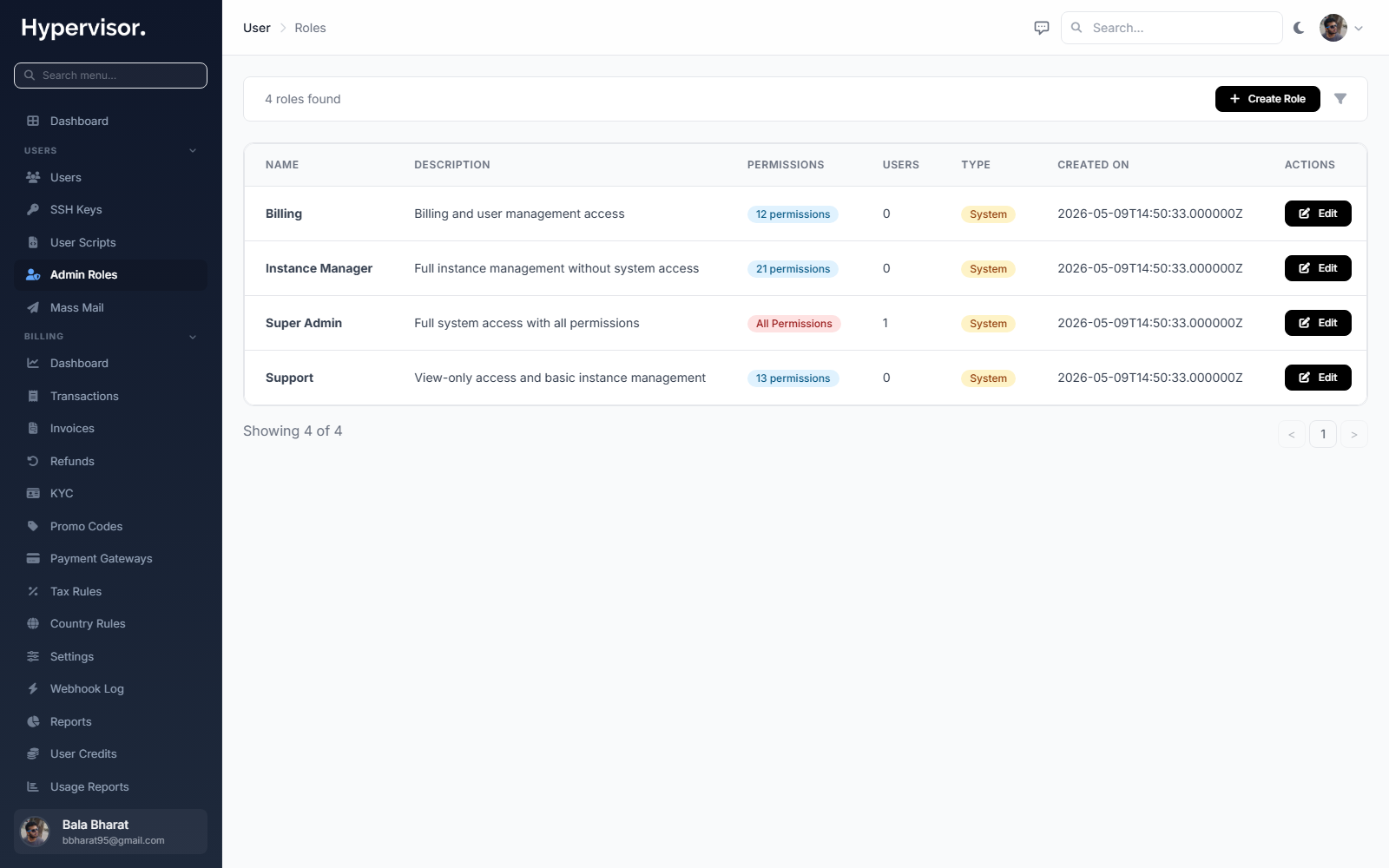
Click Add Role to open the create form.
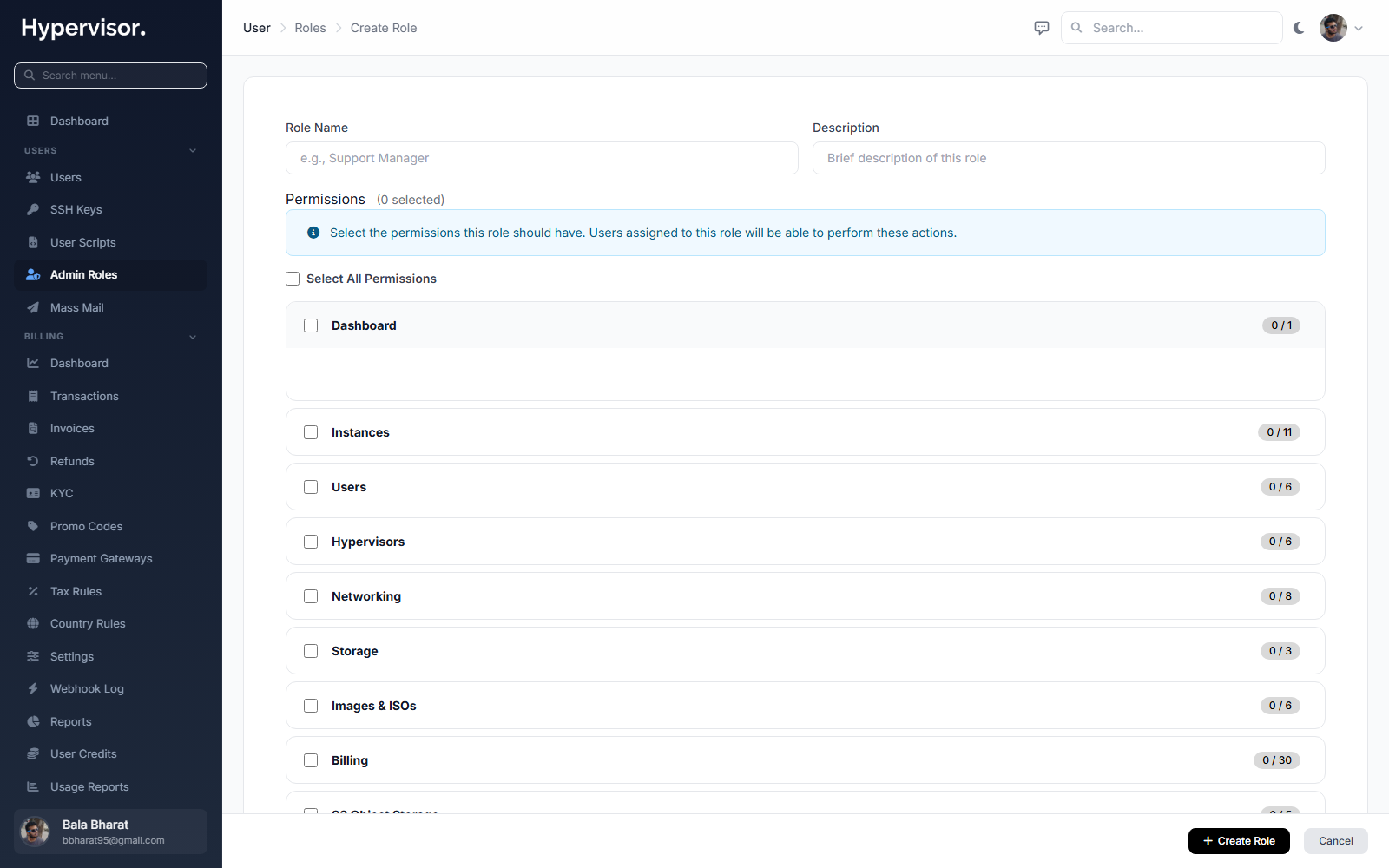
Each role is a name plus a list of permission strings. Permissions are namespaced (resource.action) so they read naturally:
| Permission group | Examples |
|---|---|
users.* | users.view, users.create, users.delete, users.impersonate |
instances.* | instances.view, instances.create, instances.delete, instances.migrate |
billing.* | billing.invoices.view, billing.credits.adjust, billing.refunds.issue |
hypervisors.* | hypervisors.view, hypervisors.deploy, hypervisors.edit |
settings.* | settings.view, settings.edit |
audit.* | audit.view |
To create a role:
- Click Create Role.
- Enter a name and description.
- Tick each permission the role grants.
- Save.
To assign a role to a staff admin, open the admin's user record under Users, scroll to the Admin Roles section, and pick one or more roles. A staff admin with no roles has no admin permissions even if is_admin is on.
The built-in super-admin role grants every permission and is what you should keep yourself on. Do not delete it.
Mass Mail
Open Mass Mail to send a one-shot email to a filtered slice of users, for example "tell everyone in the EU region about a maintenance window".
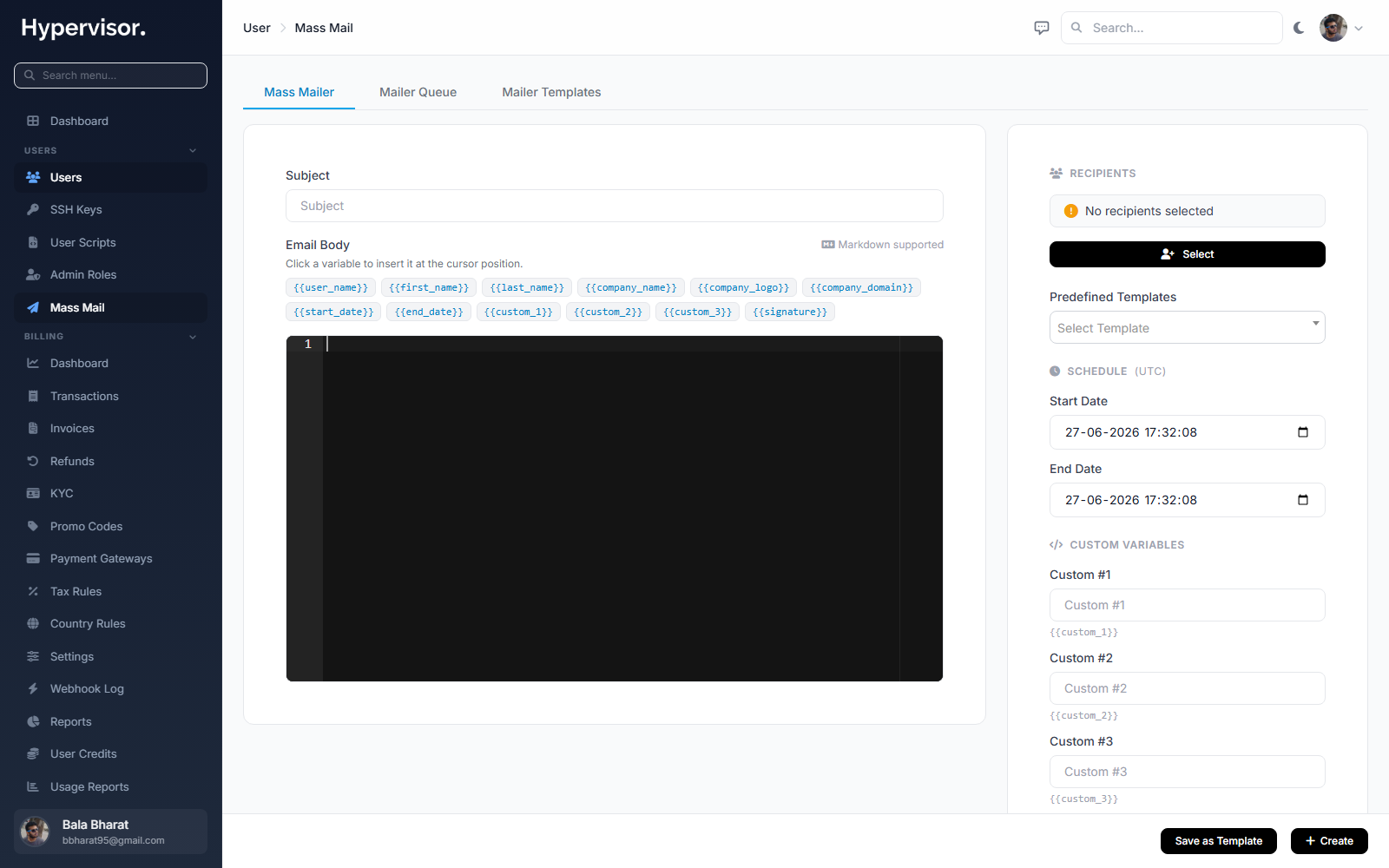
Form fields:
- Audience filter: narrow the recipient list by hypervisor, location, plan, or self-provisioning pack. The recipient count updates live as you change the filter.
- Subject: the email subject line.
- Body: the email body. Personalization tokens like
{{ user.name }}are expanded per recipient. - Send test to me: ship the rendered email to your own admin address first so you can preview it.
- Send: queue the blast. Delivery is rate-limited so a large blast does not overrun your outbound mail server.
Every send is recorded in the Email Log; see Monitoring for how to inspect it.
What end users see
A customer never sees any of these admin pages. They do see the effects:
- A user that you suspend cannot log in and gets a "your account has been suspended" message.
- A user you impersonate sees no visible difference; their session log still records the impersonation event.
- A staff admin signed in to the admin panel sees only the menu items their roles allow. Items they have no permission for are hidden.
- A customer that receives a Mass Mail sees a normal email from your configured sender address.
For customer-side team features (a customer inviting their own colleagues into their own account), the customer manages their team from the user panel under Organization -> Team Members.
Troubleshooting
A staff admin can sign in but every admin page is empty
- The staff admin has no roles assigned, or their roles grant no
*.viewpermissions. Open their user record under Users and assign a role.
A deleted user's instances are still running
- Background cleanup jobs run on a queue and can take a few minutes. Open Monitoring -> Tasks and check for
instance.destroyjobs scoped to that user.
Mass Mail recipient count is zero
- The audience filter is too narrow. Loosen the filters until the count goes up.
The same customer's SSH key shows up multiple times
- The same key was uploaded under more than one name by the customer. The fingerprint column tells you which rows are duplicates.
Related pages
- Self Provisioning for the resource pool you assign on the user edit page.
- Monitoring for the audit log, email log, and tasks list that record admin actions.
- CAPTCHA and Self-Registration for how new users are created without admin involvement.