Admin IP Restriction
Overview
Admin IP Restriction limits who can sign in as an admin to a small list of trusted IP addresses (your office, your VPN, your home IP). If the feature is enabled and a login attempt comes from an IP that is not on the list, the panel rejects it before the password is even checked. Customer logins are not affected.
By default the feature is off and admins can sign in from anywhere.
Concepts
- An admin user is any account with admin privileges in the panel. Customers (user-side accounts) are unaffected by this feature.
- An IP whitelist is the list of source IP addresses allowed to sign in as an admin. Each entry is a single IPv4 or IPv6 address.
- The whitelist itself is managed with the
hvcli admin:ipcommand on the management server. The on/off toggle and the active whitelist are shown in System > Settings > Security. Sessions and login activity show up under System > Sessions.
Where the toggle lives
The Admin IP Restriction toggle is in System > Settings, under the Security section. The page also lists the currently whitelisted IPs.
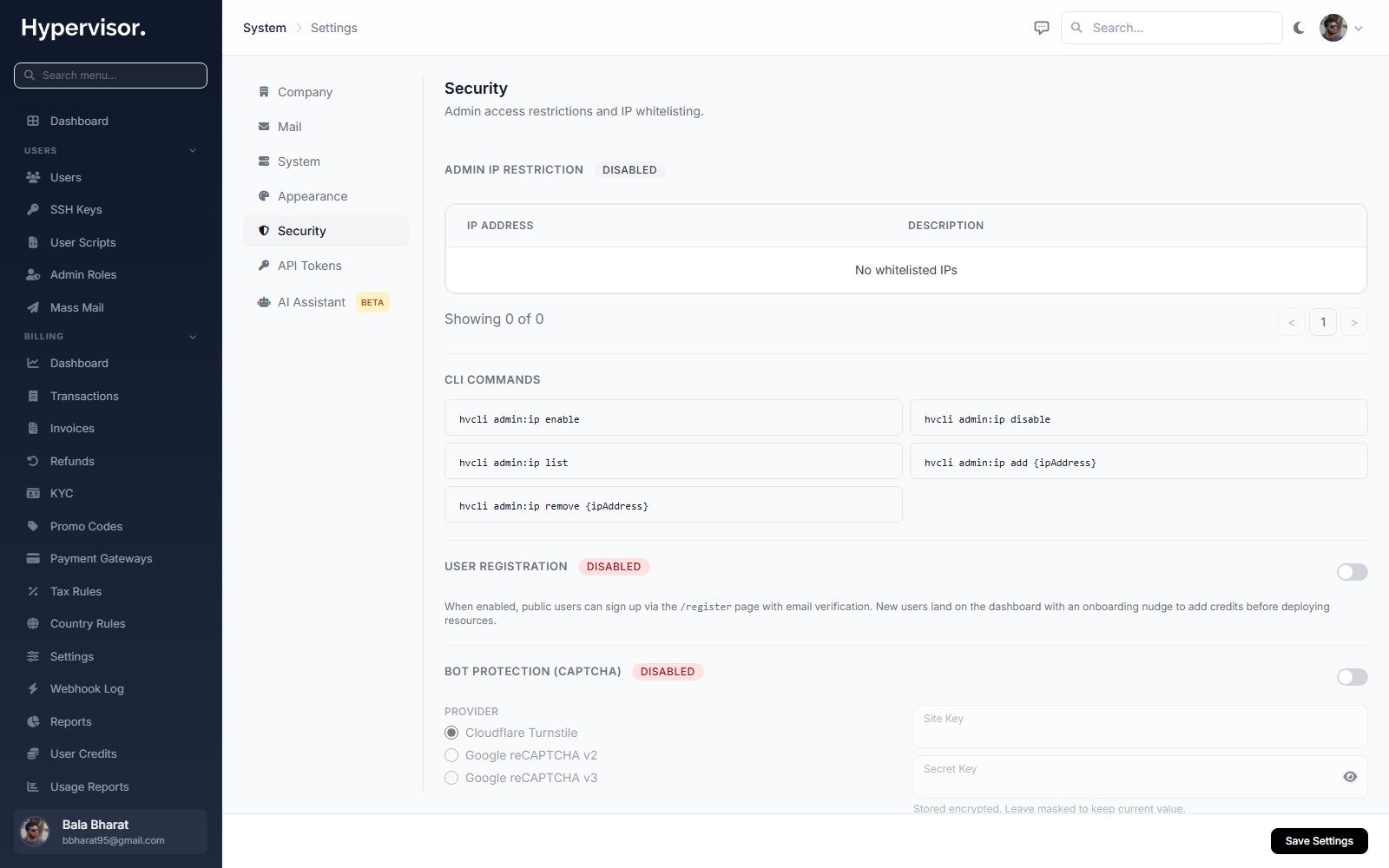
You can flip the feature on and off from this page, but adding or removing IPs still goes through hvcli admin:ip on the management server. This is intentional, so a misconfigured panel session cannot accidentally lock every admin out.
Admin steps
Check active admin sessions
The Sessions page lists every admin device currently signed in, with its source IP. Use it to confirm which IPs you actually need to whitelist before turning the feature on.
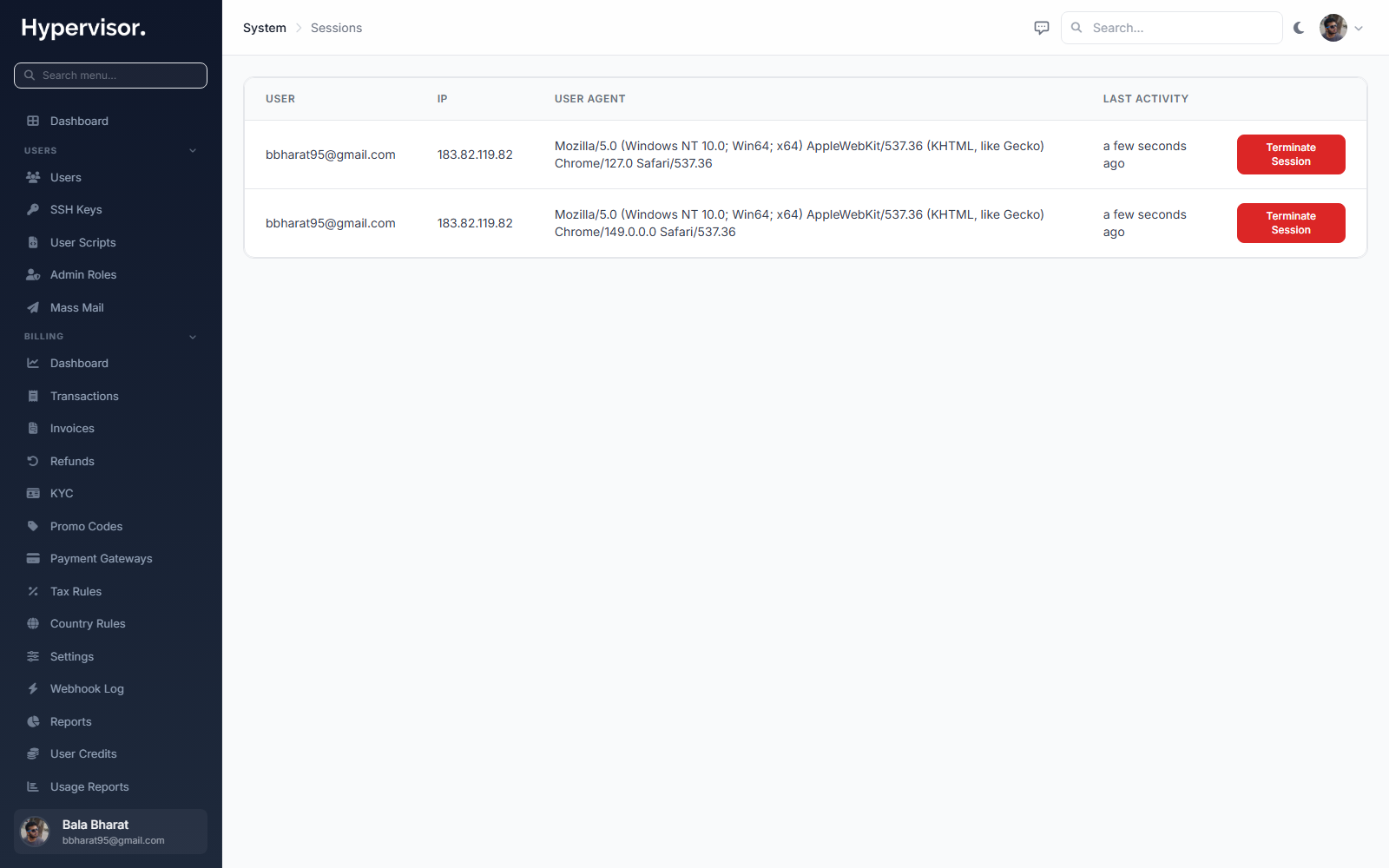
Go to System > Sessions in the admin panel.
Manage the whitelist
All whitelist operations run from the management server's shell over SSH:
| Command | Description | Example |
|---|---|---|
| Enable IP restriction | Turn the feature on. Only whitelisted IPs can log in as admin. | hvcli admin:ip enable |
| Disable IP restriction | Turn the feature off. Admin logins work from any IP. | hvcli admin:ip disable |
| List allowed IPs | Show the current whitelist. | hvcli admin:ip list |
| Add an IP | Add an IP to the whitelist. | hvcli admin:ip add 203.0.113.45 |
| Remove an IP | Remove an IP from the whitelist. | hvcli admin:ip remove 203.0.113.45 |
Changes apply immediately. No restart required.
Walkthrough
-
Confirm the IP you are connecting from, then whitelist it first so you do not lock yourself out.
hvcli admin:ip add 203.0.113.45 -
Add any other trusted IPs (other admins, VPN exit IPs).
hvcli admin:ip add 192.168.1.100 -
List to confirm.
hvcli admin:ip listSample output:
Whitelisted Admin IPs:
- 192.168.1.100
- 203.0.113.45 -
Turn the feature on.
hvcli admin:ip enableOutput:
Admin IP restriction is now ENABLED. Only whitelisted IPs can access admin accounts.
Removing an IP and disabling the feature
hvcli admin:ip remove 203.0.113.45
hvcli admin:ip disable
Disabling the feature allows admin logins from any IP address. Only do this if you are about to replace it with another control (firewall, VPN-only access, and so on).
Troubleshooting
- Locked out after enabling the feature? SSH into the management server and either add your current IP with
hvcli admin:ip add <ip>or runhvcli admin:ip disableto turn the feature off. - Not sure what your public IP is? From your own machine run
curl https://ifconfig.me.